
Keeping firmware versions consistent across VMware hosts is crucial for stability, performance, and security. Yet, identifying which ESXi hosts are running which network interface firmware versions can quickly become a tedious task, especially in environments with multiple clusters and dozens of servers.

Recently, I faced exactly this challenge. I needed a clear and reliable overview of the installed NIC firmware versions across all hosts in specific VMware clusters. Rather than performing the checks manually (or clicking through countless vSphere UI tabs), I decided to automate the process.
VMware environments often contain a mix of hardware models, driver versions, and firmware levels. These variables play a major role in network reliability and performance. When a firmware update is released or when troubleshooting network issues, it’s important to know:
- Which hosts are running outdated firmware?
- Which clusters might be at risk due to inconsistent versions?
However, VMware doesn’t provide a quick, consolidated overview of NIC firmware versions per cluster out of the box.
To streamline this task, I wrote a PowerShell script that retrieves the NIC firmware versions for each host in a VMware cluster. Using PowerCLI, the script collects:
- vCenter & Cluster name on top of the report
- Hostname
- Server Model
- NIC
- NIC Model
- Firmware Version
Once the data is gathered, it generates a HTML report that provides a complete overview at a glance.
Below is the script used to build this overview.
#Version 1.0
#2026-03-28
#Check NIC Firmware script with HTML output
#Adds vCenter, Cluster & Server Model to HTML report

# ============================
#  Ask user for vCenter & Cluster
# ============================
$vCenter = Read-Host "Enter vCenter Server name or IP"
$cluster  = Read-Host "Enter Cluster name"

Write-Host "Using vCenter: $vCenter" -ForegroundColor Cyan
Write-Host "Using Cluster: $cluster" -ForegroundColor Cyan

# ============================
#  Function: Check NIC Firmware
# ============================
function CheckNICFirmware {
    Param (
        $ESXi
    )

    $esxcli = Get-EsxCli -V2 -VMHost $ESXi
    $result = ""

    # Get Server Model
    $serverModel = (Get-View -Id $ESXi.ExtensionData.MoRef).Hardware.SystemInfo.Model

    # Get NIC list
    $nicList = $esxcli.network.nic.list.Invoke()

    foreach ($nic in $nicList) {

        $nicName = $nic.Name
        $nicGet  = $esxcli.network.nic.get.Invoke(@{nicname=$nicName})

        $model = $nic.Description
        $firmwareVersion = $nicGet.DriverInfo.FirmwareVersion

        $rowColor = "#e6f0ff"   # Light blue row

        $result += "<tr style='background-color: $rowColor;'>
                        <td>$($ESXi.Name)</td>
                        <td>$serverModel</td>
                        <td>$nicName</td>
                        <td>$model</td>
                        <td>$firmwareVersion</td>
                    </tr>"
    }

    return $result
}

# ============================
#  Connect to vCenter
# ============================
Try {Disconnect-VIServer * -Confirm:$false -ErrorAction SilentlyContinue | Out-Null}
Catch {}

Connect-VIServer $vCenter

$ESXis = Get-Cluster -Name $cluster | Get-VMHost | Sort-Object Name | Where-Object {
    $_.ConnectionState -eq 'Connected' -or $_.ConnectionState -eq 'Maintenance'
}

# ============================
#  HTML: Header
# ============================
$html = @"
<html>
<head>
    <title>NIC Firmware Report - vCenter: $vCenter | Cluster: $cluster</title>
    <style>
        table { width: 100%; border-collapse: collapse; margin-bottom: 30px; }
        th, td { border: 1px solid black; padding: 8px; text-align: left; }
        th { background-color: #f2f2f2; }
        h1 { margin-bottom: 5px; }
        .subheader { color: #555; font-size: 18px; margin-bottom: 20px; }
    </style>
</head>
<body>
    <h1>NIC Firmware Report</h1>
    <div class="subheader">
        vCenter Server: <b>$vCenter</b><br>
        Cluster: <b>$cluster</b>
    </div>

    <table>
        <tr>
            <th>Host</th>
            <th>Server Model</th>
            <th>NIC</th>
            <th>NIC Model</th>
            <th>Firmware Version</th>
        </tr>
"@

# ============================
#  NIC Firmware Section
# ============================
foreach ($ESXi in $ESXis) {
    $html += CheckNICFirmware -ESXi $ESXi
}

$html += "</table>"

# ============================
#  HTML Footer
# ============================
$creationDate = Get-Date -Format "yyyy-MM-dd HH:mm:ss"

$html += @"
<p>Report generated on: $creationDate</p>
</body>
</html>
"@

# ============================
#  Output Report
# ============================
$outputPath = "C:\Scripts\NIC_Firmware_Report.html"
$html | Out-File -FilePath $outputPath

Start-Process "msedge.exe" $outputPath

Write-Host "Disconnecting from $vCenter..."
Disconnect-VIServer -Confirm:$False | Out-Null

Write-Host "Report generated at $outputPath" -ForegroundColor Green
The final output is an automatically generated HTML page containing a complete NIC firmware inventory per VMware cluster.
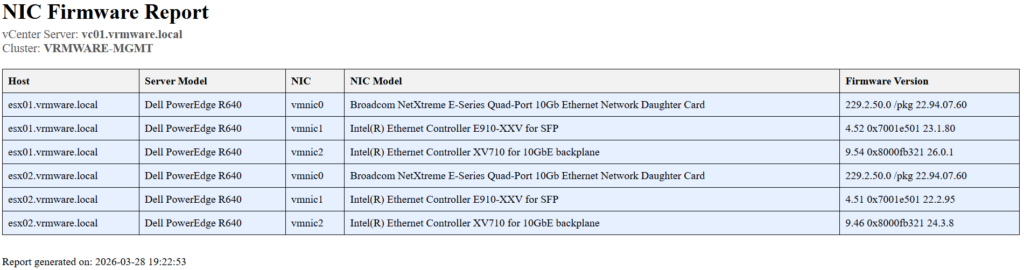
It provides a quick, accurate, and repeatable way to check firmware versions across an environment, saving time and avoiding configuration drift.